Overview
Xoda allows you to create and manage recurring class schedules for Group Classes, Personal Training, and Semi-Private sessions.
Before You Start
Ensure that:
-
Services have already been created.
-
Trainers have been assigned to services.
-
Rooms or facilities have been configured.
- You have access to the Staff Web Portal.
🎥 Video Tutorial: Prefer a visual walkthrough? Watch the guide
below.
STEPS
|
1
|
Log in to your Xoda account.
|
|
|
2
|
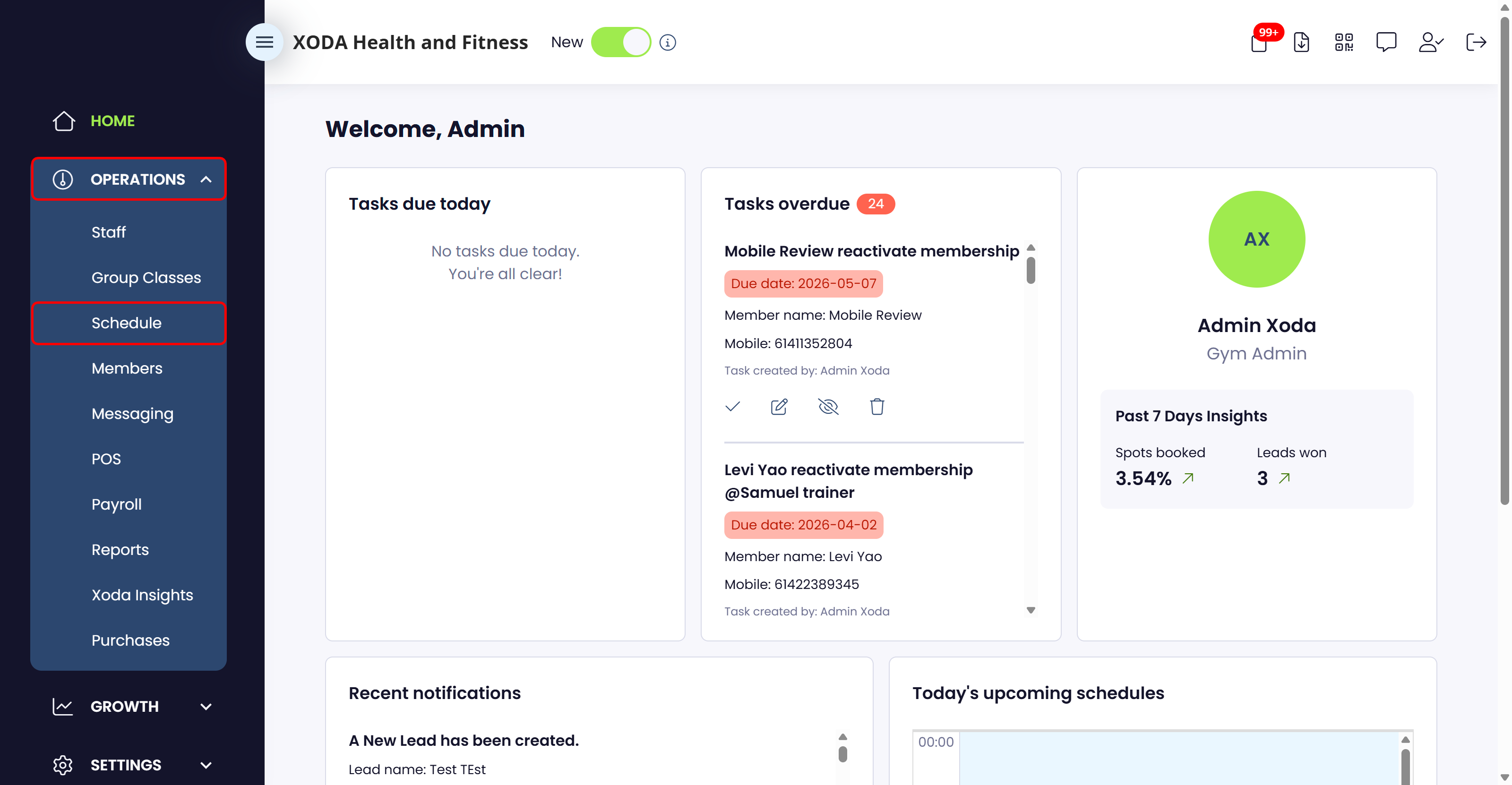
From your dashboard, go to Operations
then select
Schedule.
|
|
|
|
|
3
|
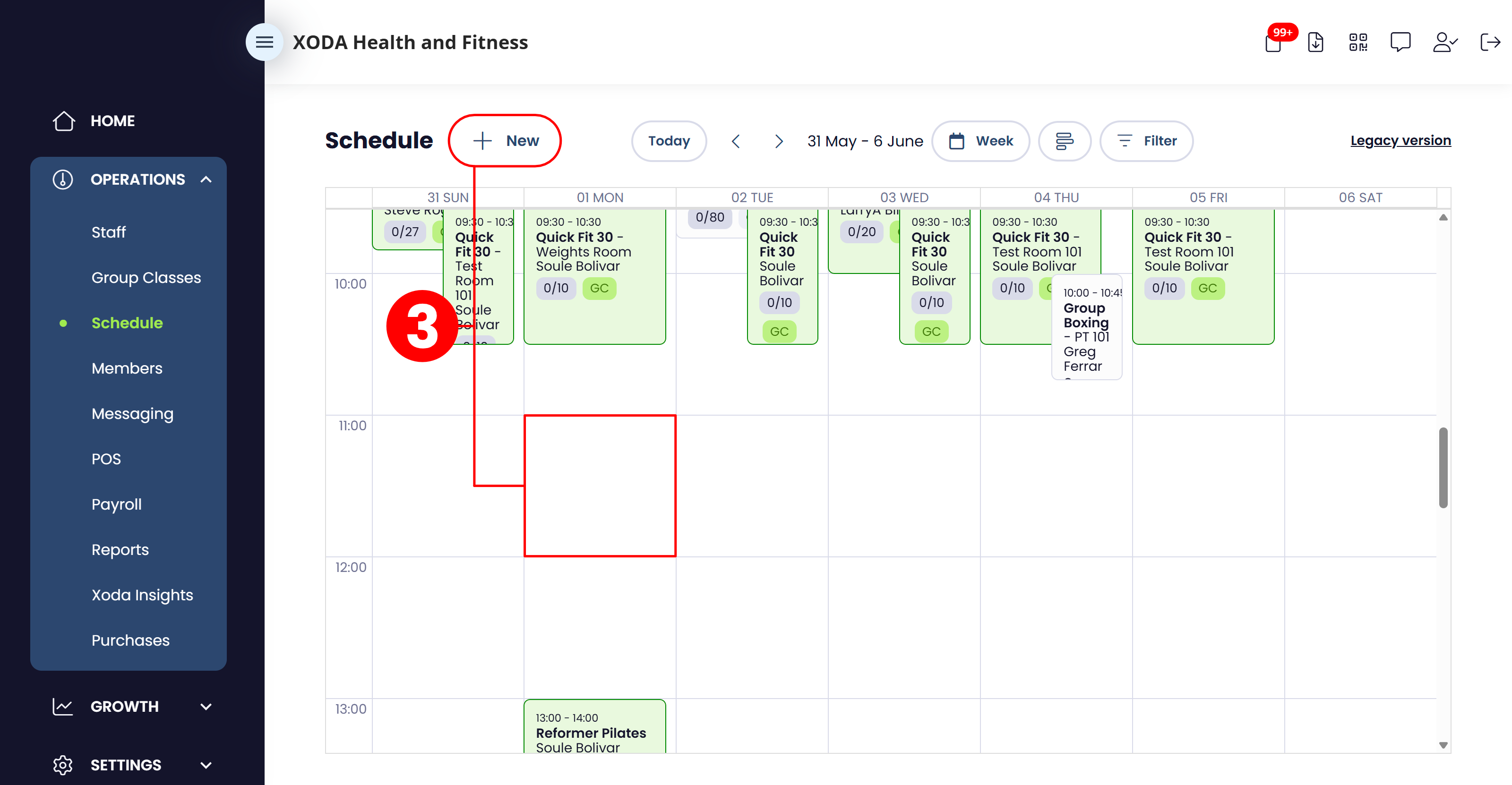
Click the + New button to create
a new schedule, or select a date directly from the
calendar to begin scheduling sessions.
Example
Create a session starting:
|
|
|
|
|
4
|
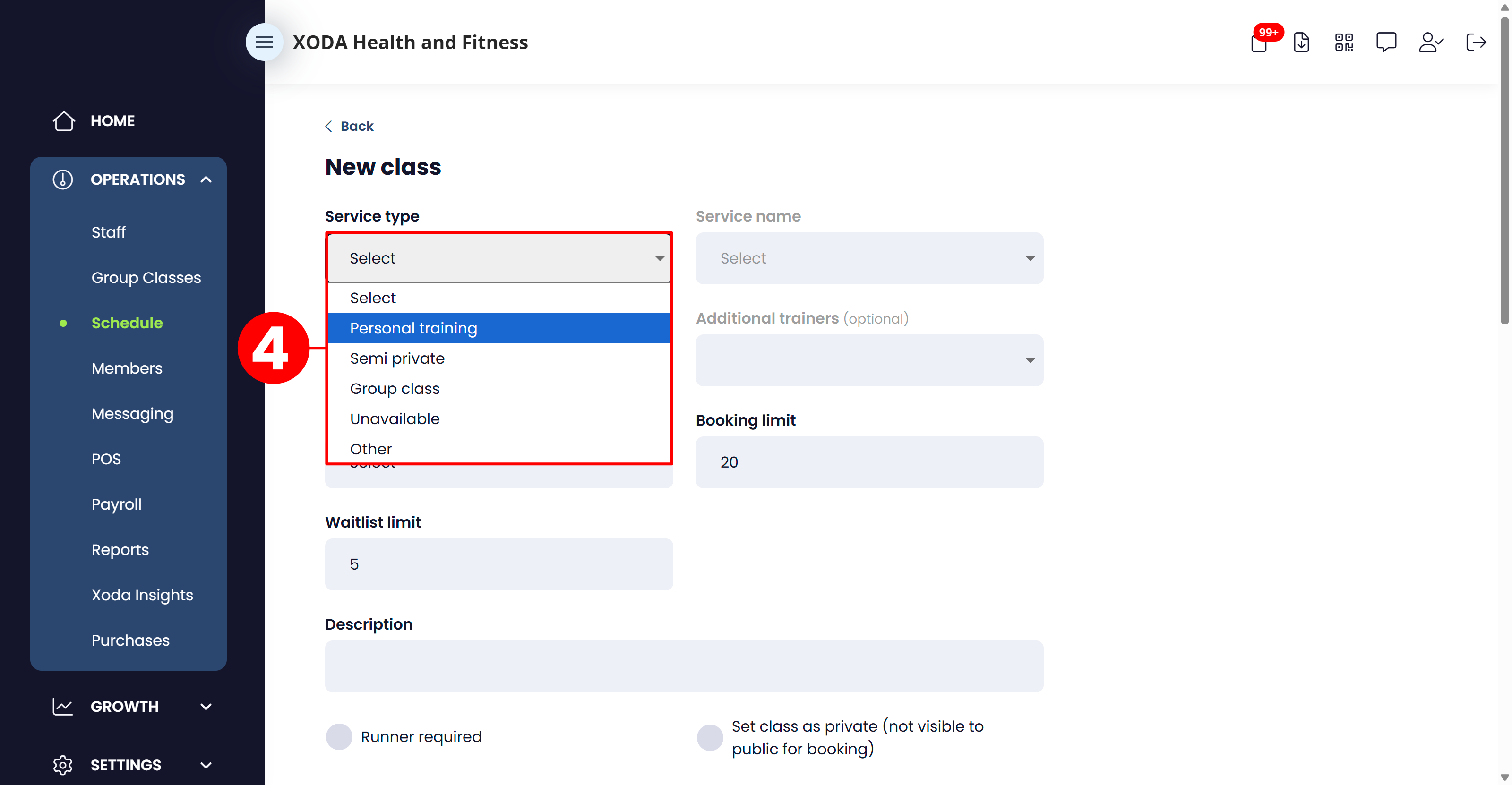
Choose the type of session you want to create:
-
Personal Training
-
Semi-Private Session
-
Group Class
|
|
|
|
|
5
|
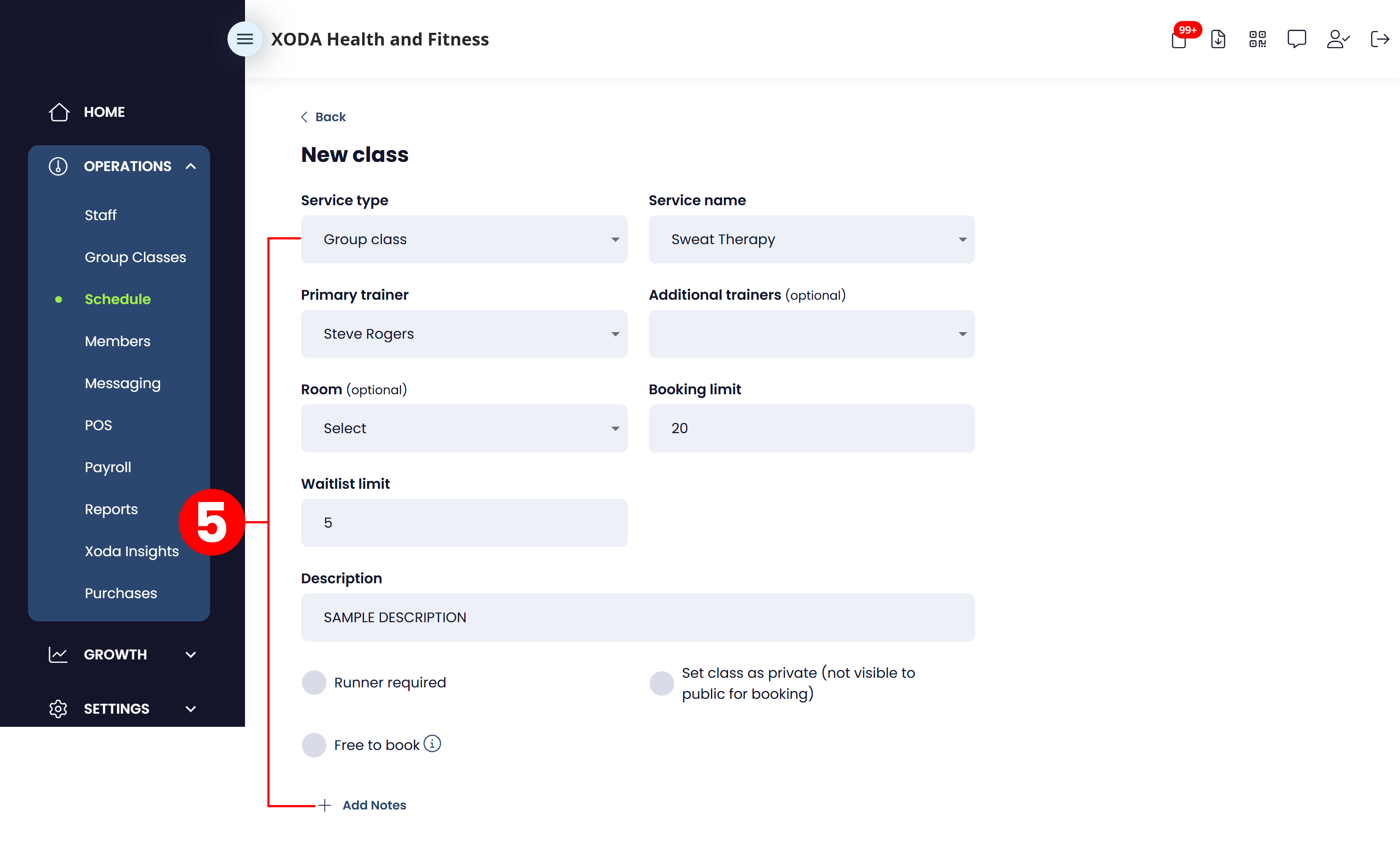
Fill in the required session information:
-
Class Name
-
Primary Trainer
Assign the main coach or trainer responsible
for the session.
-
Secondary Trainer (Optional)
Optionally assign an additional trainer or
assistant coach.
-
Room
Select the room or facility where the session
will take place.
-
Runner Option
Enable the Runner option if the session includes
running activities.
-
Free to Book (optional)
Enable this option if the session should
be free for members to book.
This is commonly used for:
- Open days
- Promotional sessions
- Community events
-
Trainer Notes (optional)
Add internal notes or instructions for trainers.
|
|
|
|
|
6
|
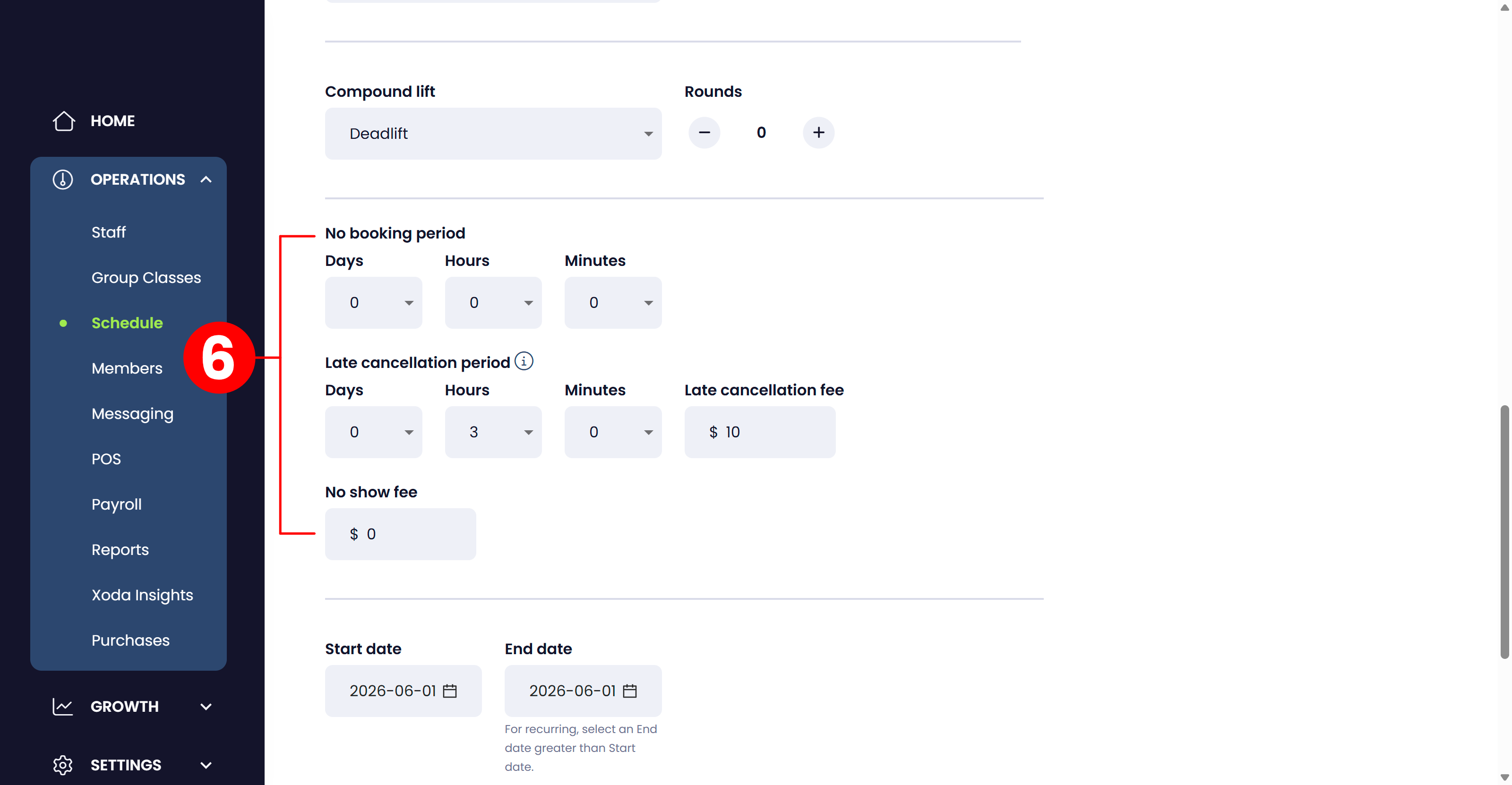
The scheduling screen will also display settings
configured within the service setup, including:
-
No Booking Period
-
Late Cancellation Period
-
No Show Fee
These settings are automatically inherited from the
service configuration.
|
|
|
|
|
7
|
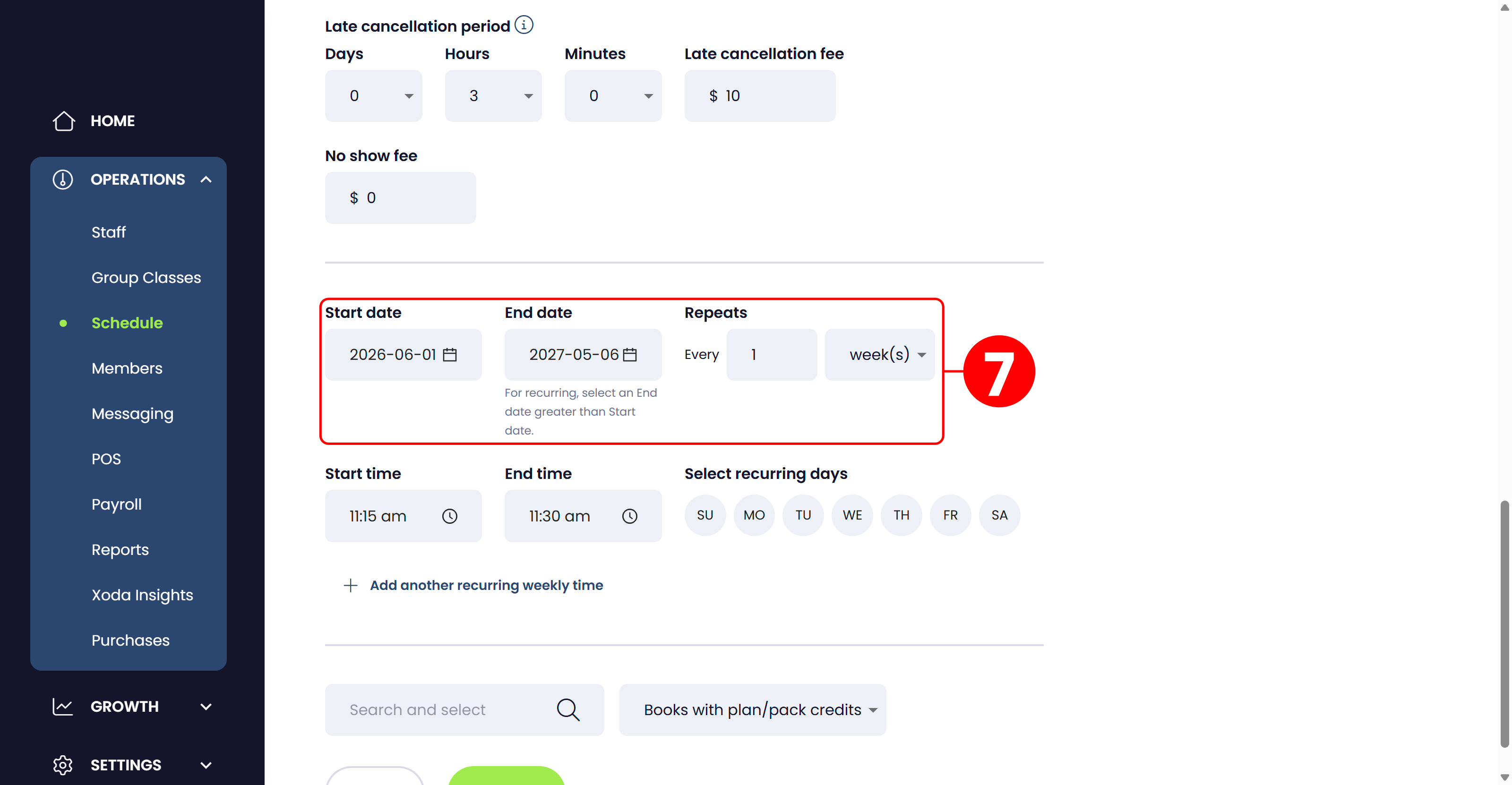
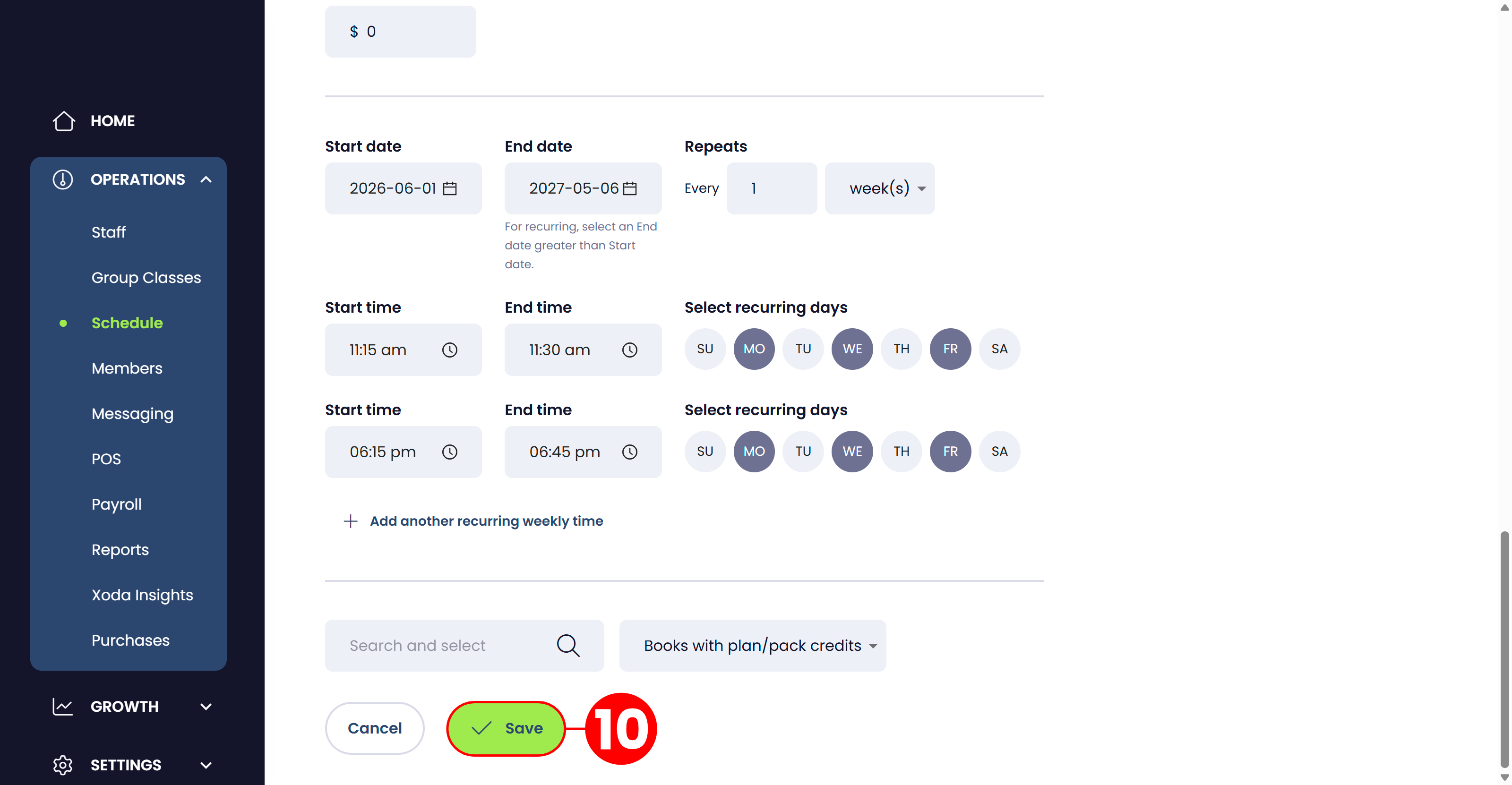
You can schedule sessions over a long-term recurring
period.
Example
Create a recurring schedule for:
- 12 months
- Multiple weeks
- Seasonal programs
Simply update the End Date.
Example
Set the end date to:
|
|
|
|
|
8
|
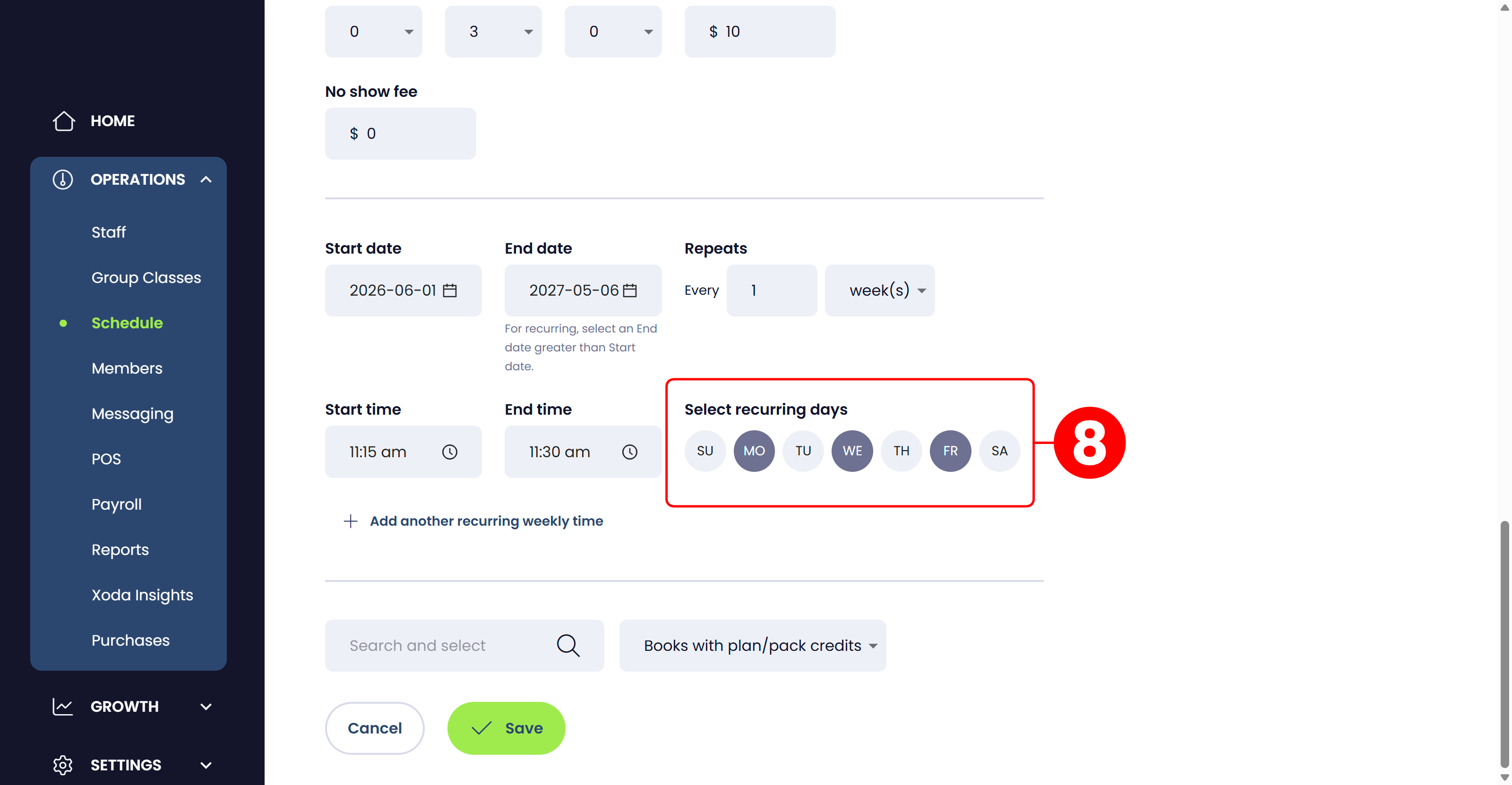
Choose the days the session should run.
Example
|
|
|
|
|
9
|
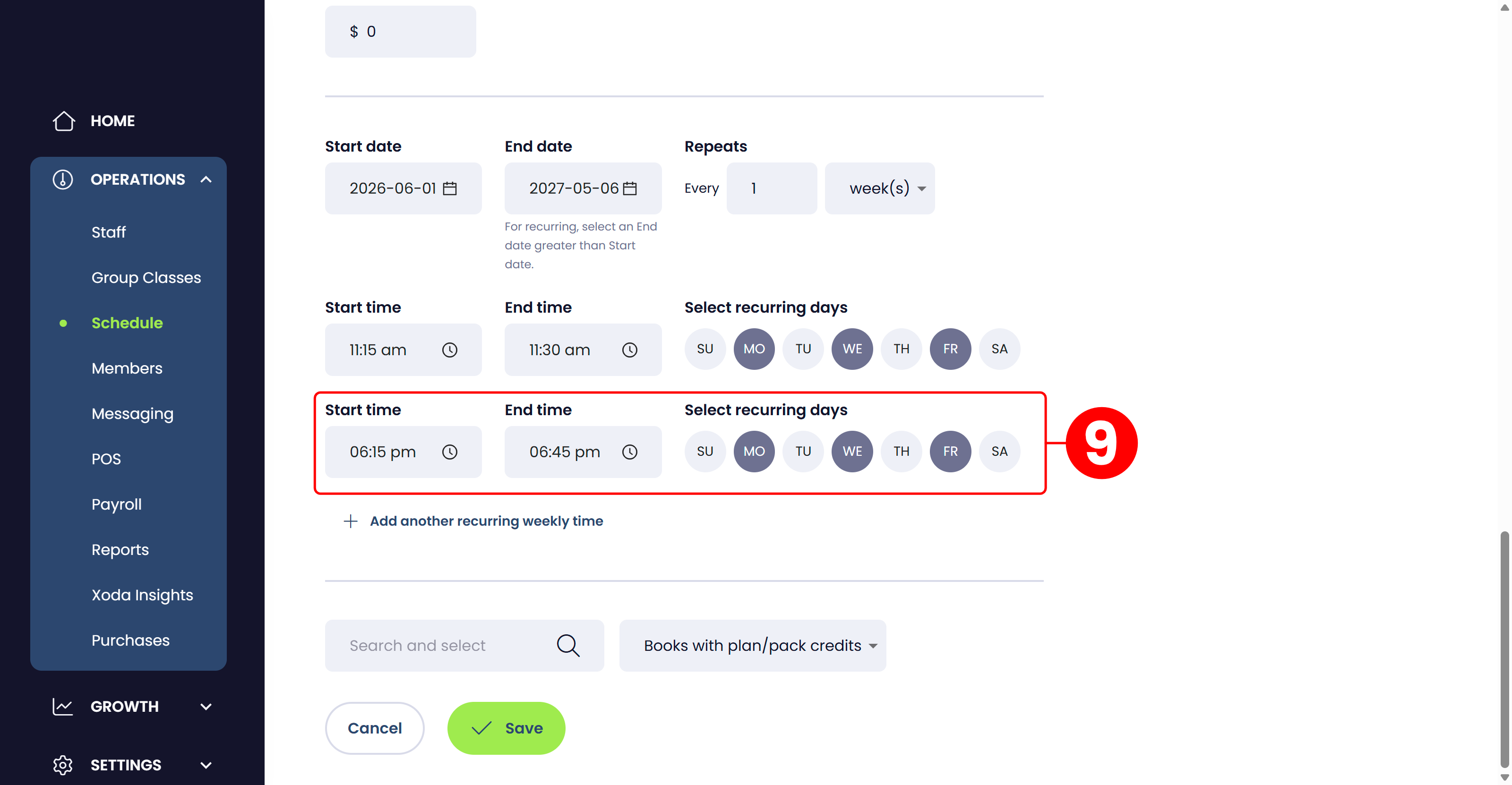
You can add additional sessions on the same recurring
schedule.
Example
Add:
- A second session at 6:00 PM
- On the same recurring days
This allows multiple recurring sessions to be created
efficiently.
|
|
|
|
|
10
|
Once all details have been completed, click the
Save button.
|
|
|
|
✅ Result: Your schedule is now successfully created and members can begin booking sessions through the app or booking portal.
| |
💡 MANAGING RECURRING SESSIONS
| |
Sessions created together are linked as recurring
bookings.
When editing a recurring session, Xoda allows you
to choose how changes are applied.
|
|
| |
🔄 AVAILABLE UPDATE OPTIONS
| |
This Session Only
Apply changes only to the selected session.
|
|
| |
All Recurring Sessions
Apply changes across the entire recurring schedule.
|
|
| |
Specific Date Range
Apply changes only within a selected date range.
This provides flexibility when managing timetable
updates or temporary schedule adjustments.
|
|
| |
🌿 BEST PRACTICES
| |
Use clear and consistent class names.
|
|
| |
Assign the correct trainer to each service. |
|
| |
Review cancellation and no-show policies before publishing sessions. |
|
| |
Use recurring schedules to reduce manual scheduling. |
|
| |
Add trainer notes for operational consistency. |
|

Comments
0 comments
Please sign in to leave a comment.