Overview
This guide explains how to add a new staff member in Xoda, assign their role,
and link them to the services they can deliver.
Before You Start
Make sure you have:
-
Access to OPERATIONS › Staff.
-
The staff member’s email address.
-
Their basic profile details.
-
The correct role to assign.
-
The services they will be teaching or delivering.
🎥 Video Tutorial: Prefer a visual walkthrough? Watch the guide
below.
STEPS
|
1
|
Log in to your Xoda account.
|
|
|
2
|
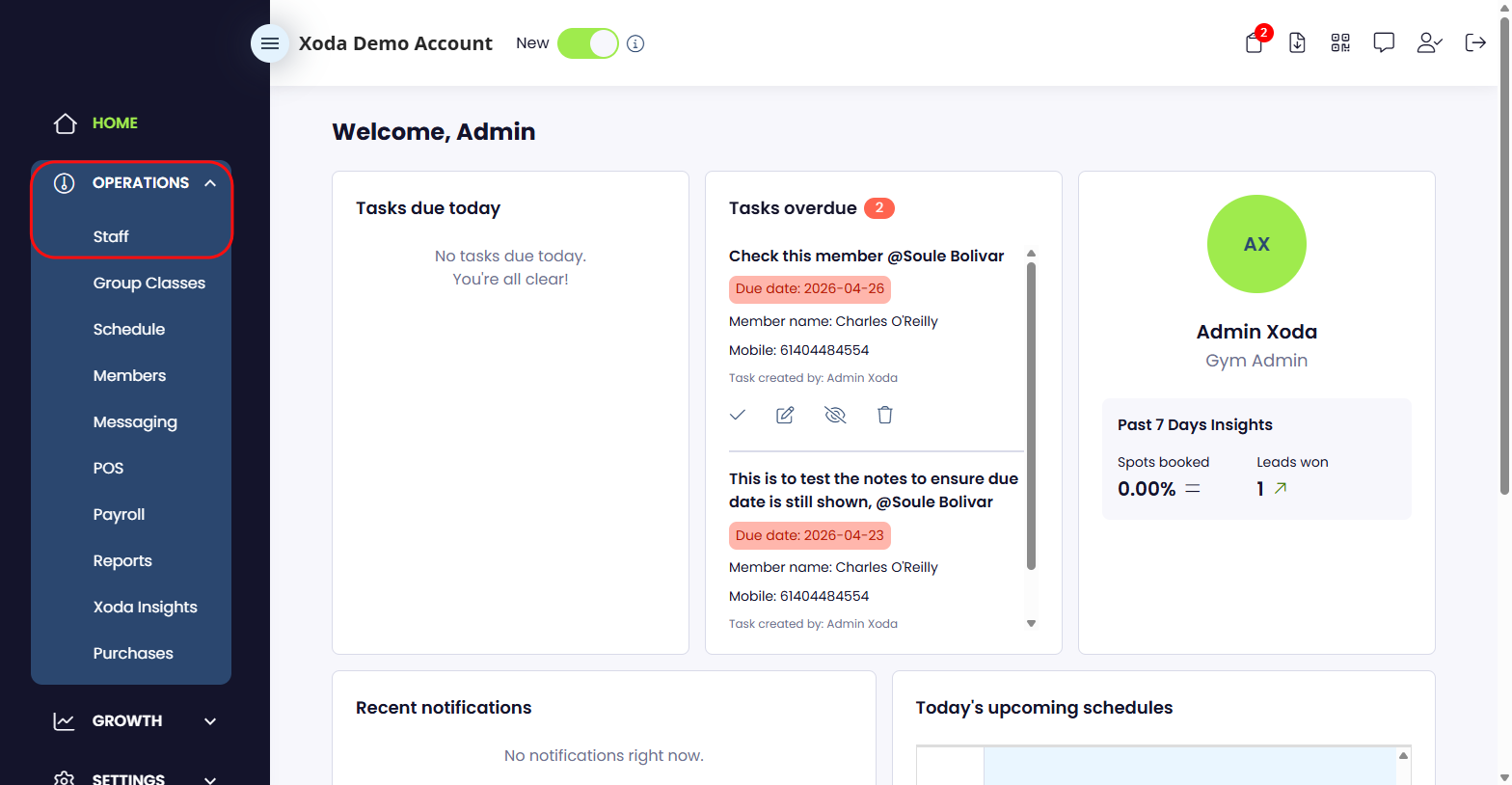
From your dashboard, go to Operations
then select
Staff.
|
|
|
|
|
3
|
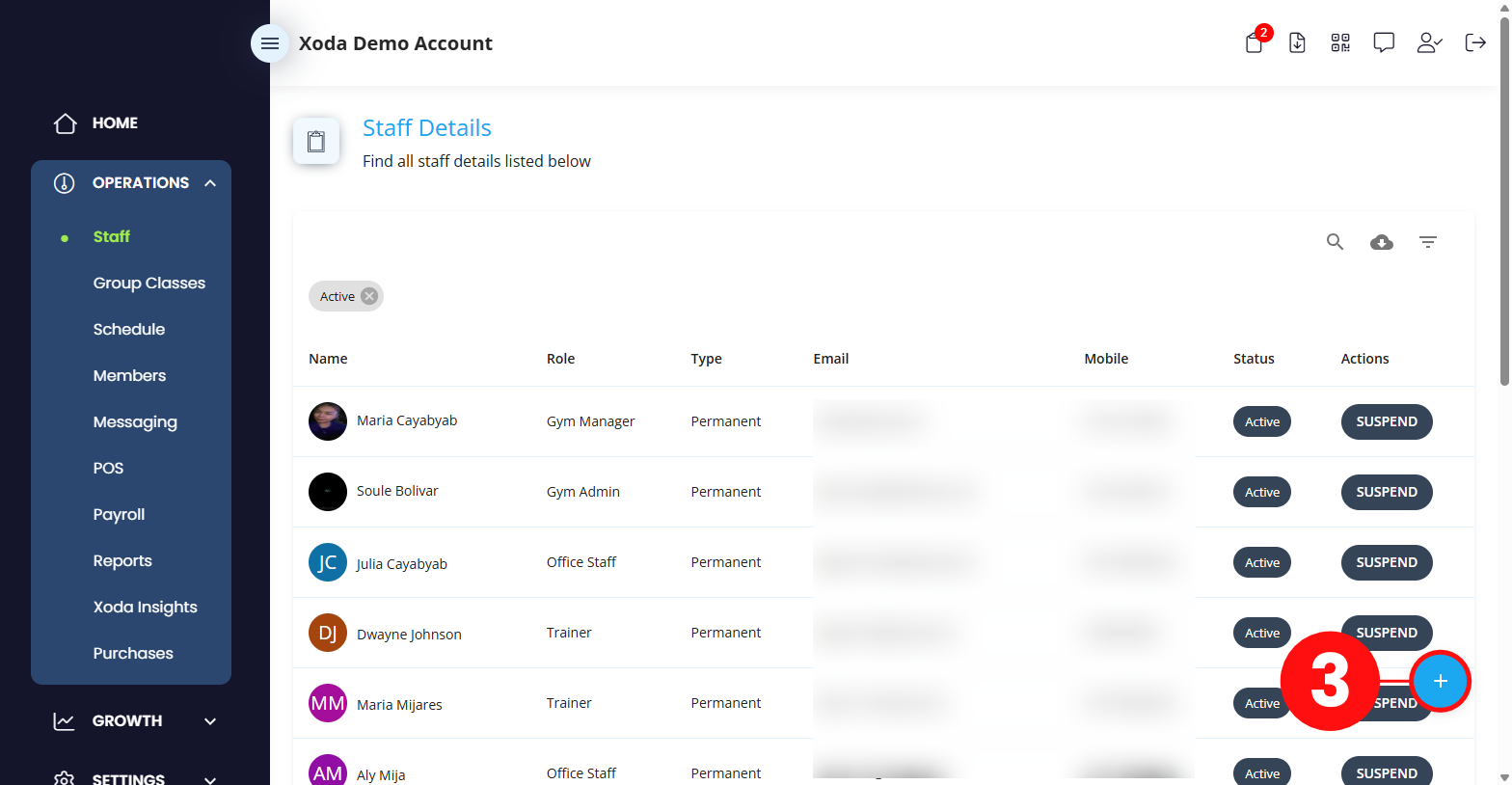
Click on the Add Staff button in
the lower-right corner.
|
|
|
|
|
4
|
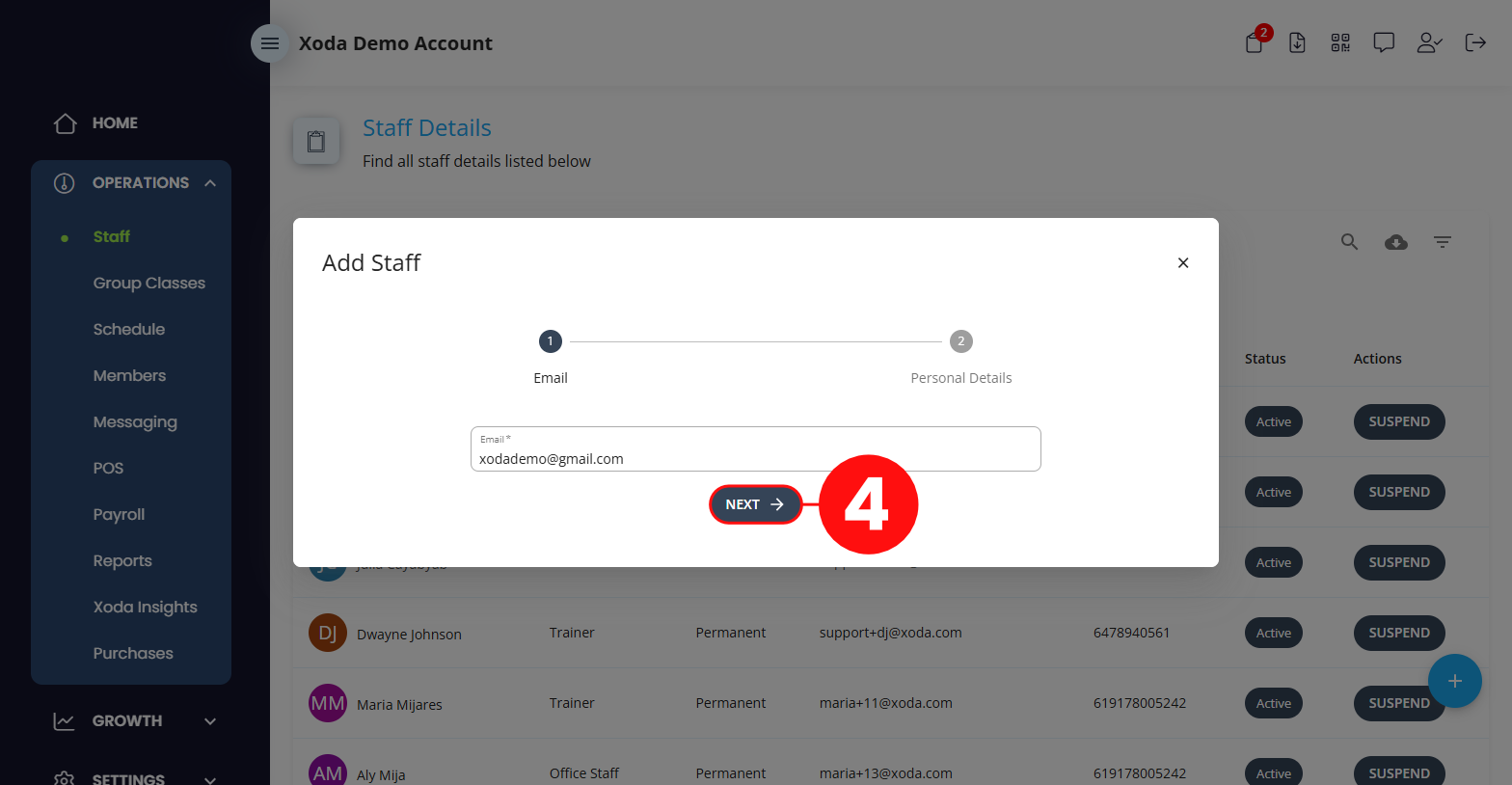
Enter the staff member’s Email Address,
then click Next.
|
|
|
|
|
5
|
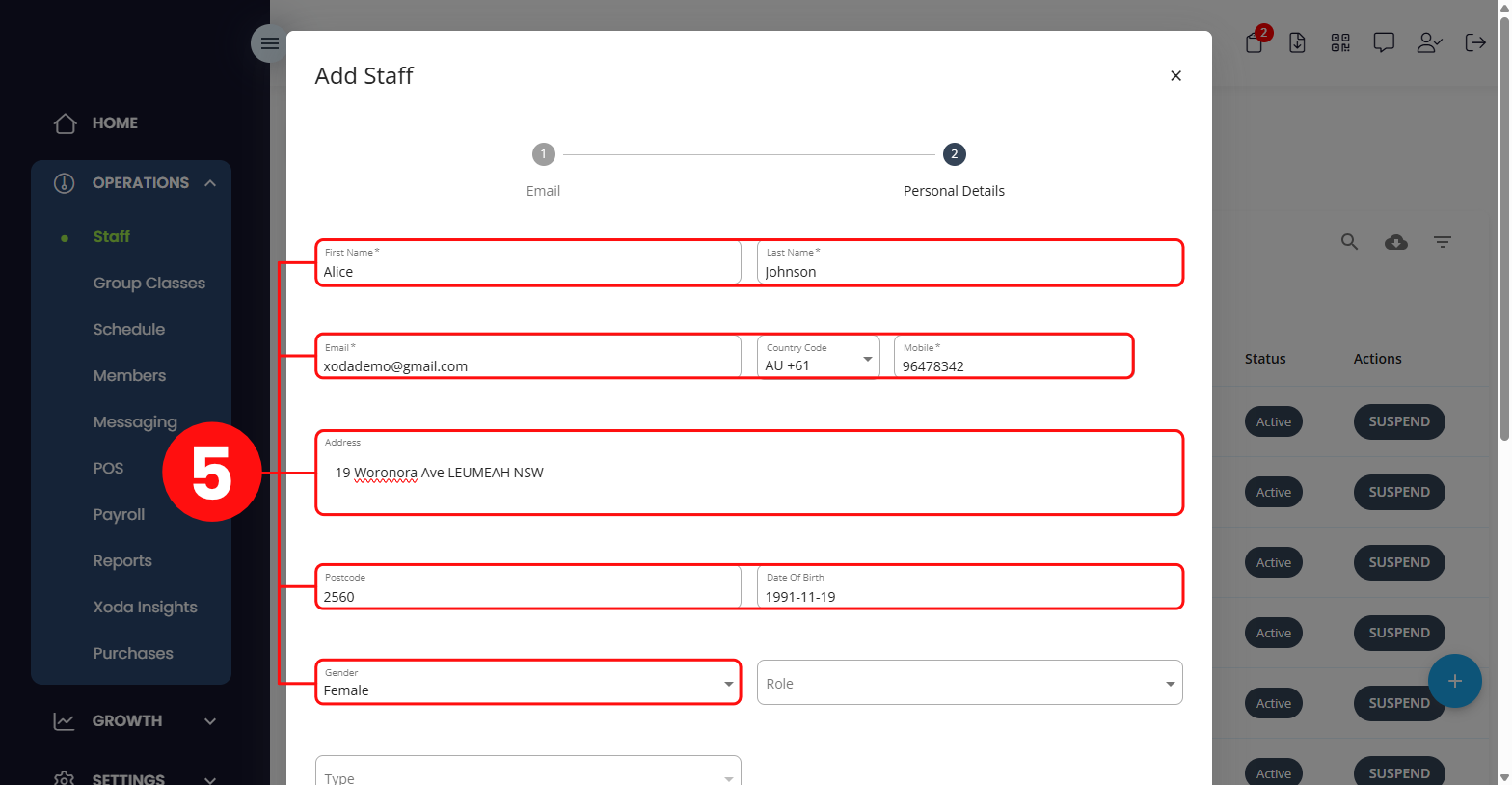
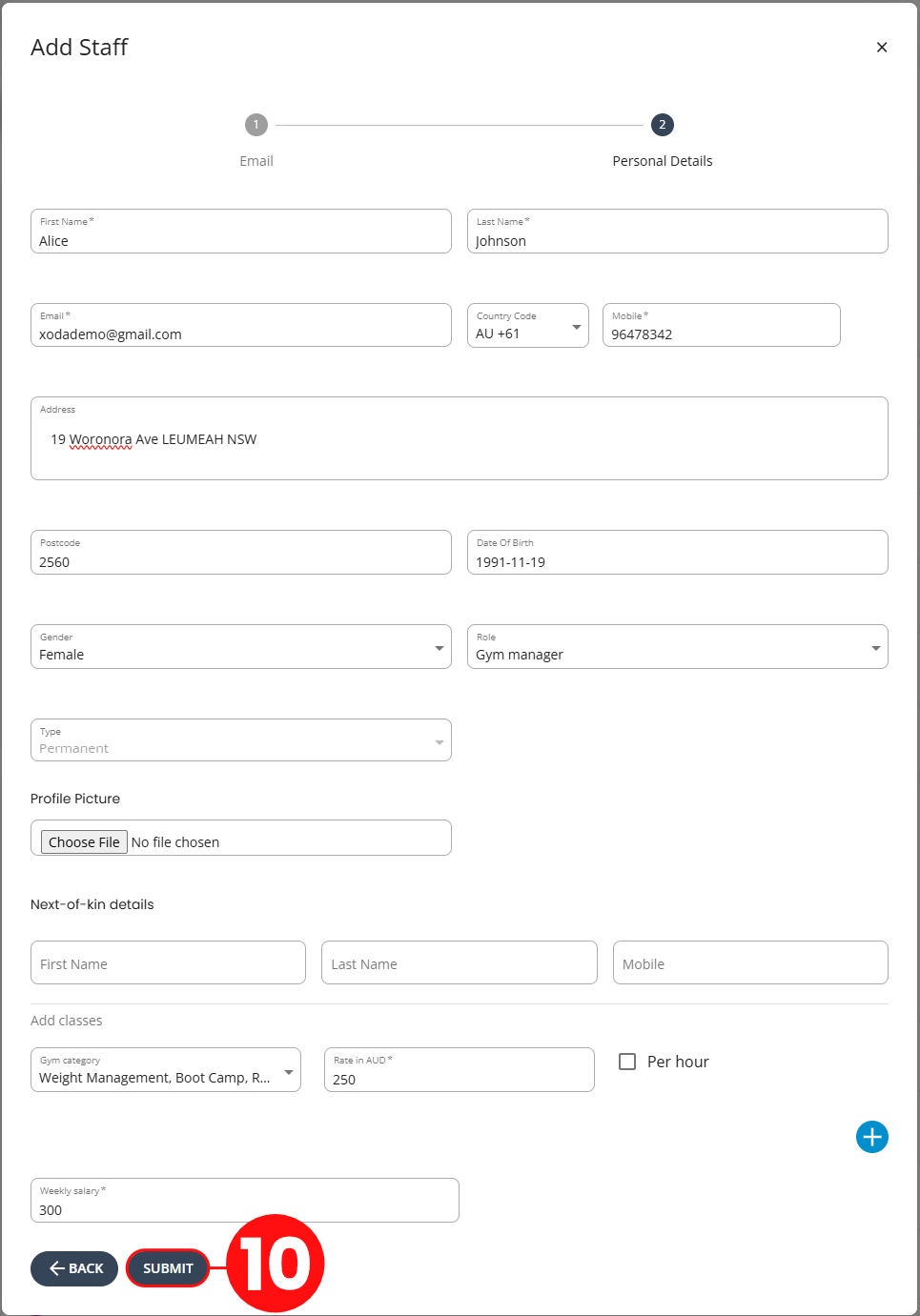
Enter the staff member’s details.
-
First name
-
Last name
-
Mobile number
-
Address
-
Postcode
-
Date of birth
-
Gender
Only complete the fields required for your business.
|
|
|
|
|
6
|
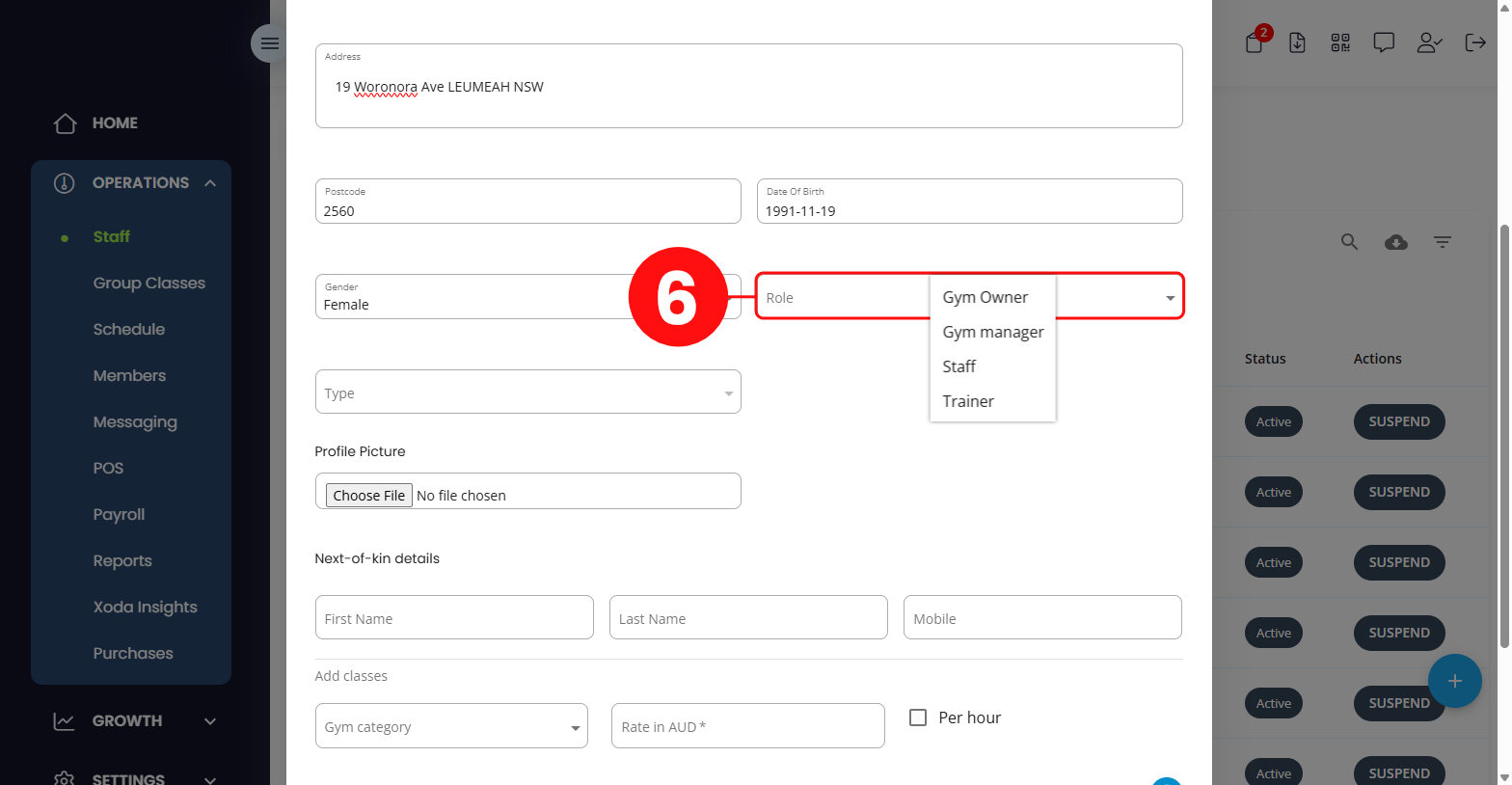
Choose the appropriate Role for
the staff member.
Roles control what the staff member can see and do
in Xoda.
-
Gym Owner – Full access.
-
Gym Manager – Operational
access, with possible revenue restrictions.
-
Staff – Day-to-day operational
access.
-
Trainer – Access based on
trainer type and assigned services.
|
|
|
|
|
7
|
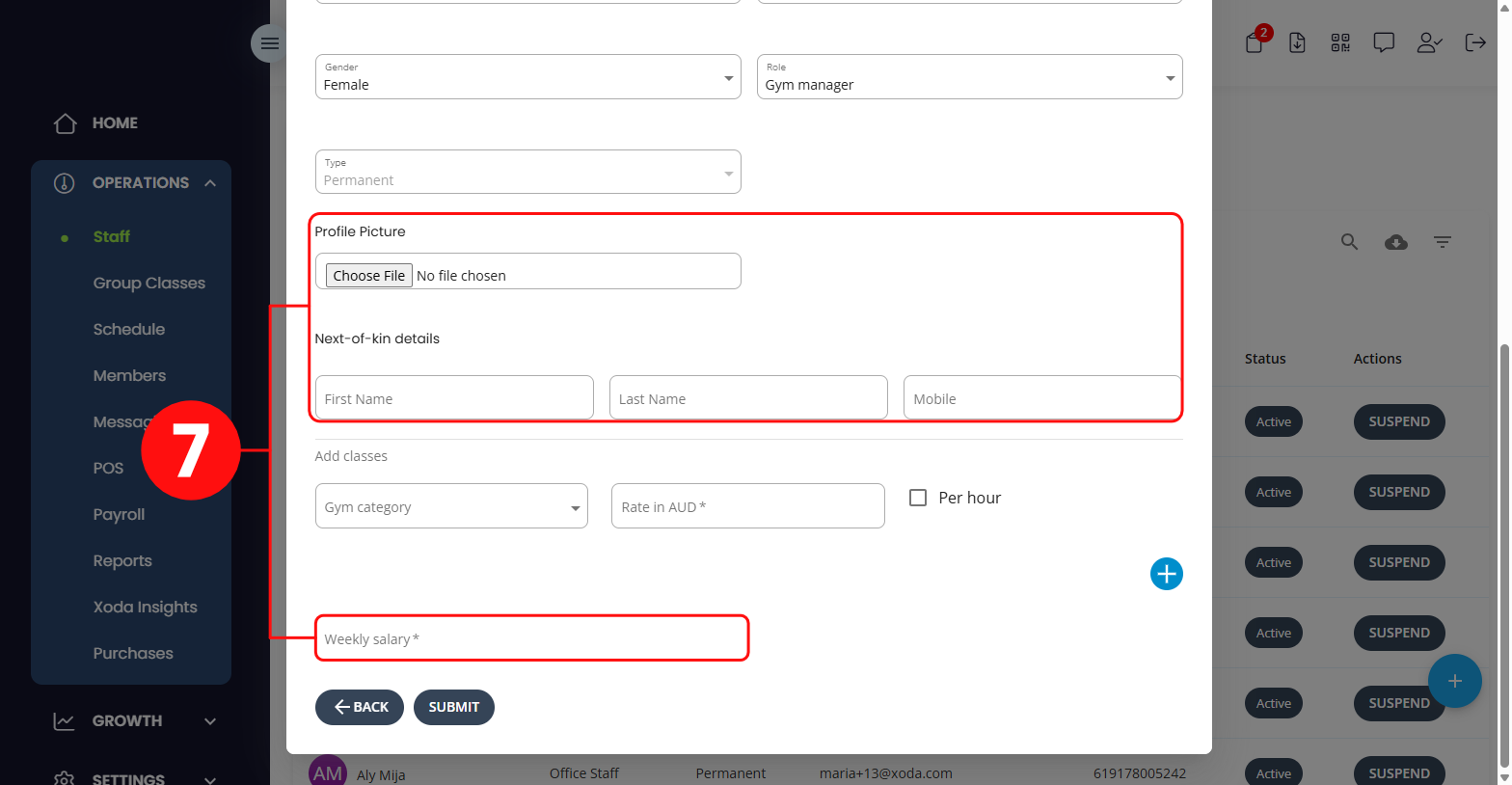
If required, add:
-
Staff profile photo.
-
Next of kin details.
-
Salary or pay information.
|
|
|
|
|
|
8
|
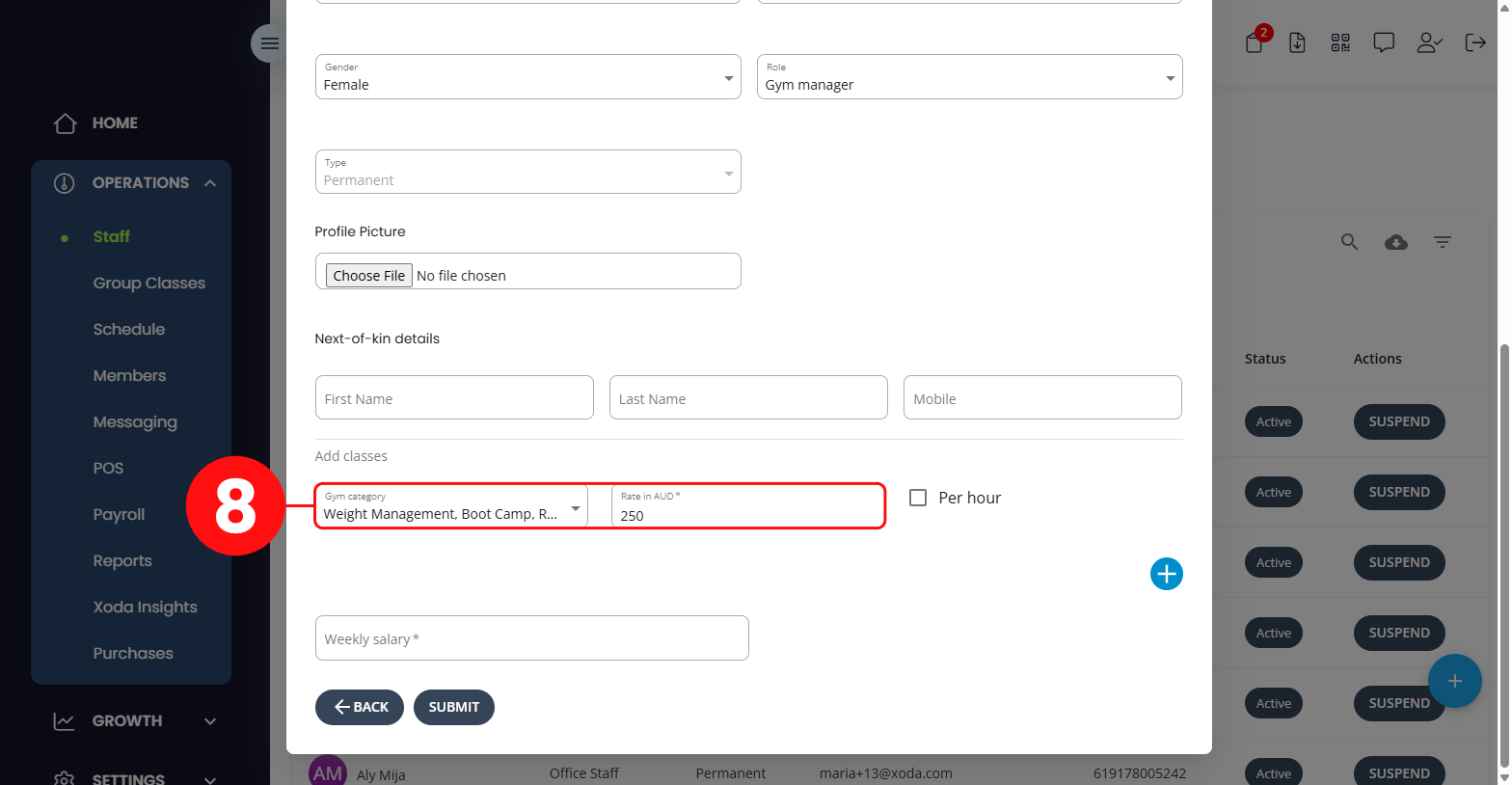
Select the services the staff member
will deliver, such as:
-
Group Classes.
-
Personal Training Sessions.
-
Other Services.
|
|
|
|
|
|
9
|
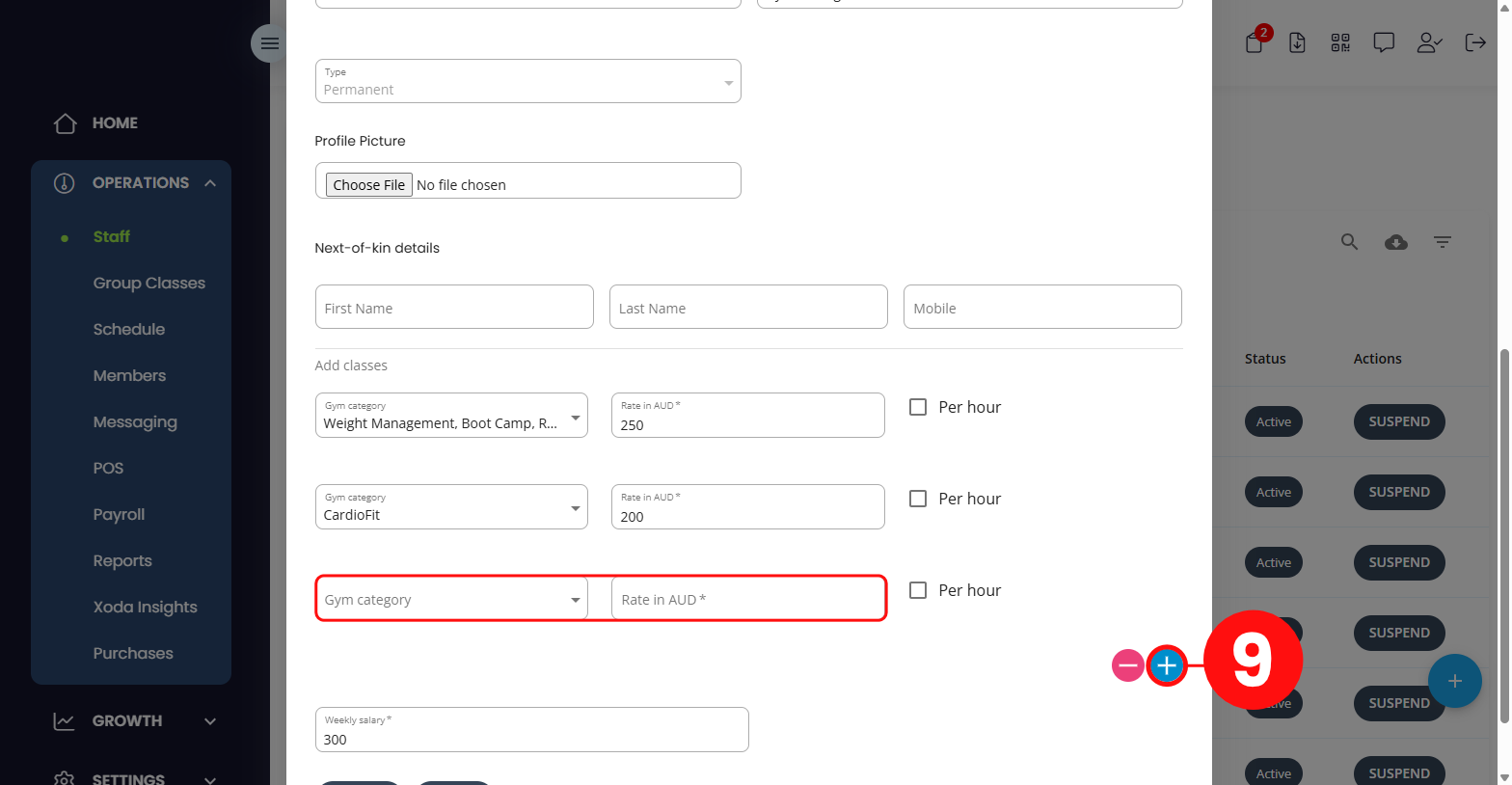
If applicable, enter the staff member’s rate for
each service.
For example:
-
Group class rate.
-
Personal Training rate.
-
Massage or specialty service rate.
Different services can have different rates.
|
|
|
|
|
|
10
|
Review the details, then click Submit.
|
|
|
|
|
✅ Result: The staff member will now be added to Xoda and available for scheduling based
on their assigned services.
| |
💡 IMPORTANT NOTES
| |
Staff can only be scheduled for services assigned
to their profile.
|
|
| |
Roles determine access to features and sensitive
information.
|
|
| |
Only assign Admin or Manager roles to trusted users. |
|
| |
Review staff access regularly as responsibilities change. |
|
| |
🔧 TROUBLESHOOTING
| |
Staff member cannot be scheduled.
Check that the relevant service has been
assigned to their profile.
|
|
| |
Staff member cannot access certain features.
Review their assigned role and permissions.
|
|
| |
Staff member did not receive access.
Confirm their email address is correct and
ask them to check their inbox or spam folder.
|
|

Comments
0 comments
Please sign in to leave a comment.